
 EN
Record and transcribe an interview on your Android phone
Checked by the Murlivo team.
Quick answer
Put your Android phone between you and the person you interview, open Murlivo and tap the record button. Tap Mark at the answers you want to quote. When you stop, the phone writes the transcript itself, offline, and saves it with the audio in a folder you choose. The audio and the text are not sent to us or to any transcription service, which matters when the person spoke to you in confidence.
Journalists, researchers, students and anyone writing a family history face the same job: a long conversation that must become text you can quote. Sending that audio to a server is not always an option. Murlivo does the work on the phone, after a one-time download of the speech model, so the recording stays on your own device.12 It works on any phone with Android 11 or newer.
Prepare
- Download the voice model before you go. Do it once, on Wi-Fi. After that, you need no signal, which helps in a basement, a train or a village with no coverage.
- Get consent on tape. Start the recording, then ask the person to say they agree to it. Rules differ by country and by publisher or university. Murlivo makes no promise of legal or other compliance.1
- Set the language if you know it. Murlivo detects the spoken language by itself, but if the interview starts with small talk in another language, choose the main one in Settings, under Transcription language. There are 20 to choose from. You can also choose it for this one recording on the record screen, right before you start.1
- Check the length. A recording stops and saves itself after 2 hours by default. For a long interview, change Maximum length in Settings, or choose No limit.
During the interview
- Open Murlivo and tap the record button.
- Put the phone on the table, about halfway between you, a little closer to the person you interview. Their voice matters more than yours.
- Choose a quiet place. A cafe with music or a busy street gives more mistakes in the text.
- Tap Mark when you hear a quote you will want. Marks are saved with their time.
- Lock the phone if you like; the recording keeps going. Keep it face up, so nothing covers the microphone.
- Tap Stop. Add a title, such as the person's name, if you want. Murlivo finishes the transcript on the phone and saves the note.
How long the transcript takes
Murlivo transcribes while you record, so part of the text is ready when you stop. The rest takes a while, because your phone does all the work.
How long it takes depends on your phone. On one of our test phones, a recent flagship with a Snapdragon 8 Gen 3 chip, the default Small voice model needed about 2 minutes 40 seconds of work for a recording of 7 minutes 44 seconds (measured on 11 October 2026). An older or cheaper phone takes longer. On the same phone, the Accurate (larger) model took about a third longer, so keep Small unless you need it.
If a transcription takes far too long, Murlivo stops it to save battery and shows Try again.
Check your quotes
- Search in note finds a word and jumps between the matches, even in a long transcript.
- Tap a mark to play from that moment, and listen before you quote. Speech-to-text makes mistakes, most often with names, numbers and words that sound alike. Always check a quote against the audio.
- Who said what. In a recording of 3 minutes or more with two or more voices, the transcript marks each speaker (Speaker 1, Speaker 2). Tap a label to put in the person's name, or merge two speakers, for this recording. Check the labels against the audio too: they can be wrong.1
- Fix the text in the app. If you want a fresh transcript later, Re-transcribe replaces it, and your edits are lost, so do that first.
- Use Share as text, Share as Markdown or Share audio file to send it on, or Copy transcript.
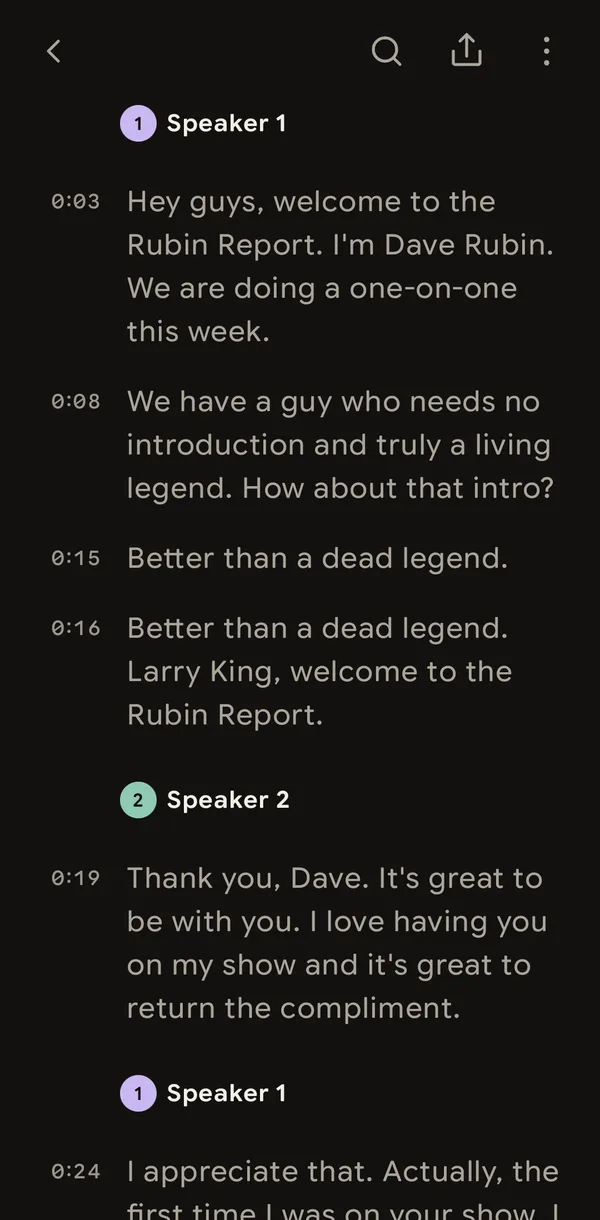
Where the files go
When you first open Murlivo, it asks you to choose where your notes go. Pick a folder; Murlivo writes each note there as plain Markdown, one file per day in an Inbox folder, with the audio in a subfolder.1 Any text editor opens it. If you delete a recording in the app, the note and its audio in your folder are kept.
Limits to know
- Murlivo does not record phone calls: it cannot record while a call is using the microphone. For a remote interview, it only hears what comes out of a speaker in the same room.
- It does not translate and does not write a summary.
- There is no server copy. If you lose the phone, you lose what is not yet in a folder you back up.1
Questions
Does the audio leave my phone?
Not when you record on the phone. Recording and transcription happen on the phone, and audio and transcripts are never sent to us or to any transcription service. Anonymous usage data never contains audio or text, and you can turn it off. The privacy policy has the details.
Do I need an account?
No. There is no sign-up, email or password.
What does it cost?
Nothing. Murlivo is free, with no ads and no subscription.
For every current fact in one place, see Murlivo product facts.
Sources
- Murlivo product facts: version, platforms, price, recording limit, notes format and languages, checked .
- Murlivo privacy policy: what stays on your devices and what is sent, checked .