
 EN
Translate a recording's transcript on your Android phone (2026)
Quick answer
Install Murlivo 1.4 or newer. Open a recording, tap the three-dot menu, then “Translate”, and pick a language. Each language downloads once, about 30 MB. The text is translated on your phone. Murlivo adds the translation to your note, under its own heading below the transcript.
Checked by the Murlivo team.
You may record a talk in one language and need it in another: a meeting in Spanish for an English colleague, a lecture in German you want to read in French, a voice message from family abroad. Murlivo 1.4.0 can translate the transcript of a recording on your Android phone and add the translation to your note.12
How to translate a transcript, step by step
- Open the recording. Its transcript must be ready.
- Tap “Translate”. It is in the three-dot menu at the top: “Into another language, on this phone”.
- Check the language of the recording. Murlivo shows the language it detected. If that is wrong, tap “Change” and pick the right one.
- Pick the language to translate to. Recent and suggested languages come first, and you can search the full list.
- Download the language once. The first time, Murlivo asks before it downloads the language pack, on Wi-Fi or mobile data. Each language downloads once, about 30 MB.
- Wait for the translation. A long transcript is translated part by part, and it keeps going if you leave the screen or lock the phone.
Where the translation appears
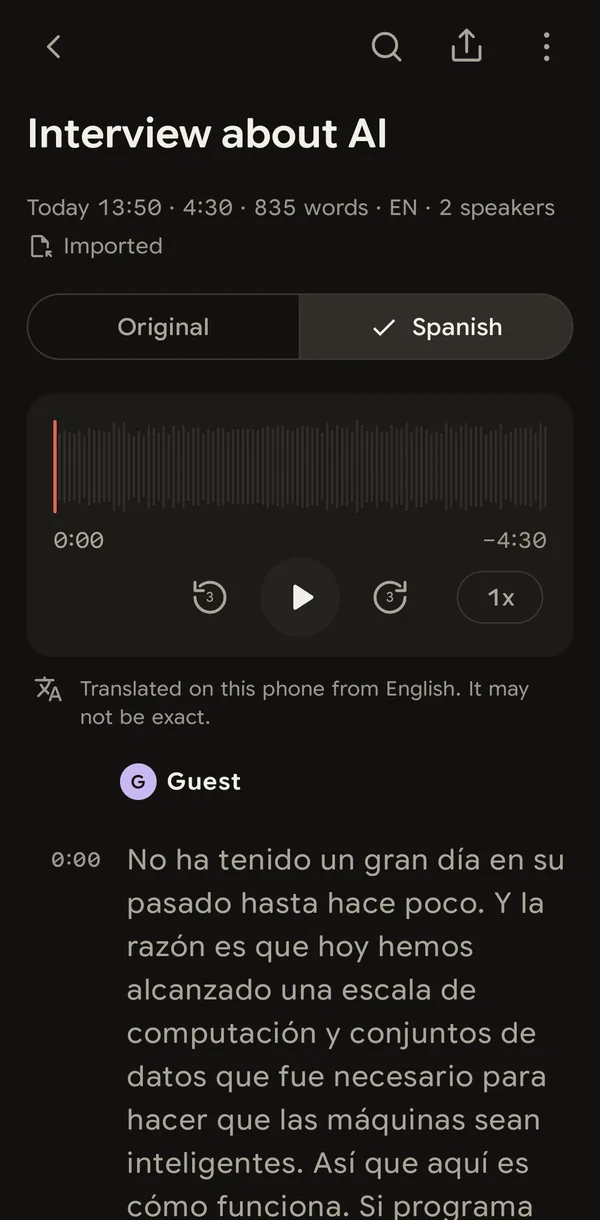
The translation shows on the recording's screen below the original, with a line that says which language it was translated from and that it may not be exact. Murlivo also adds it to your note in your notes folder, under its own heading, “Translation (English)” for example, below the transcript. You can copy a translation, translate into another language too, or remove one. When you remove a translation in Murlivo, its section in your note stays.
Language packs and space
Each language downloads once, about 30 MB. The text is translated on your phone. The packs you have are listed under “Translation languages” in the settings, where you can remove one to make room. Removing a pack keeps your translations and notes, and Murlivo downloads it again the next time you need it.
Which languages
Murlivo can translate between more than 50 languages, among them English, German, Spanish, French, Portuguese, Italian, Turkish, Polish, Russian and Dutch. Portuguese has one pack for Brazil and Portugal. A translation can only start from a language the recording can be transcribed in and the translator knows.
If you change the transcript later
After you edit a transcript or transcribe it again, the translation is not changed by itself. It shows “Made from an older version of the transcript.” and a button “Update translation”.
Limits to know
- Not exact: this is machine translation. Names, numbers and technical words can come out wrong, so check what matters.
- Between two other languages: a translation that does not involve English may be less exact.
- Space: each language you use needs its own pack of about 30 MB.
- The text only: Murlivo translates the transcript, not the audio.
- Android 11 or newer is needed to run Murlivo.
When another tool fits better
- You need a live conversation translated. An app made for live speech translation fits better than translating a finished recording.
- The text must be exact, such as a contract. Ask a human translator.
- You want a translated file to send. Translate in Murlivo, then export the translation or both languages: see Export a transcript as TXT, Markdown, SRT, PDF or Word.
Questions
Can I translate a voice recording's transcript on my Android phone?
Yes. In Murlivo 1.4 or newer, open the recording, tap “Translate” and pick a language. The text is translated on your phone and added to your note.
How big is a language pack?
Each language downloads once, about 30 MB. You can remove a pack in the settings under “Translation languages”.
Where does the translation go in my note?
Below the transcript, under its own heading, such as “Translation (English)”. A note can hold more than one translation.
Which languages can Murlivo translate?
More than 50, among them English, German, Spanish, French, Portuguese, Italian, Turkish, Polish, Russian and Dutch.
Can I export the translation?
Yes. In “Export as…” choose “Translation” or “Both”. With “Both”, each paragraph comes in the original language, then in the translation.
What happens if I edit the transcript after translating it?
The translation stays as it was and shows “Made from an older version of the transcript.” Tap “Update translation” to translate the new text.
References
- Murlivo changelog, version 1.4.0, checked .
- Murlivo product facts, checked .
- Murlivo on Google Play, checked .