
 EN
Export a transcript as TXT, Markdown, SRT, PDF or Word on Android (2026)
Quick answer
Install Murlivo 1.4 or newer. Open a recording, tap the three-dot menu and choose “Export as…”. Pick Text (TXT), Markdown, Subtitles (SRT), PDF or Word, choose what to include, then tap “Save to device” or Share. The file is made on your phone, so no internet is needed.
Checked by the Murlivo team.
A transcript is often needed somewhere else: as subtitles for a video, as a Word file to edit, as a PDF to send, or as plain text for another app. Murlivo 1.4.0 can export any transcribed recording in five formats. It makes the file on your Android phone, so no internet is needed and the audio is not uploaded.12
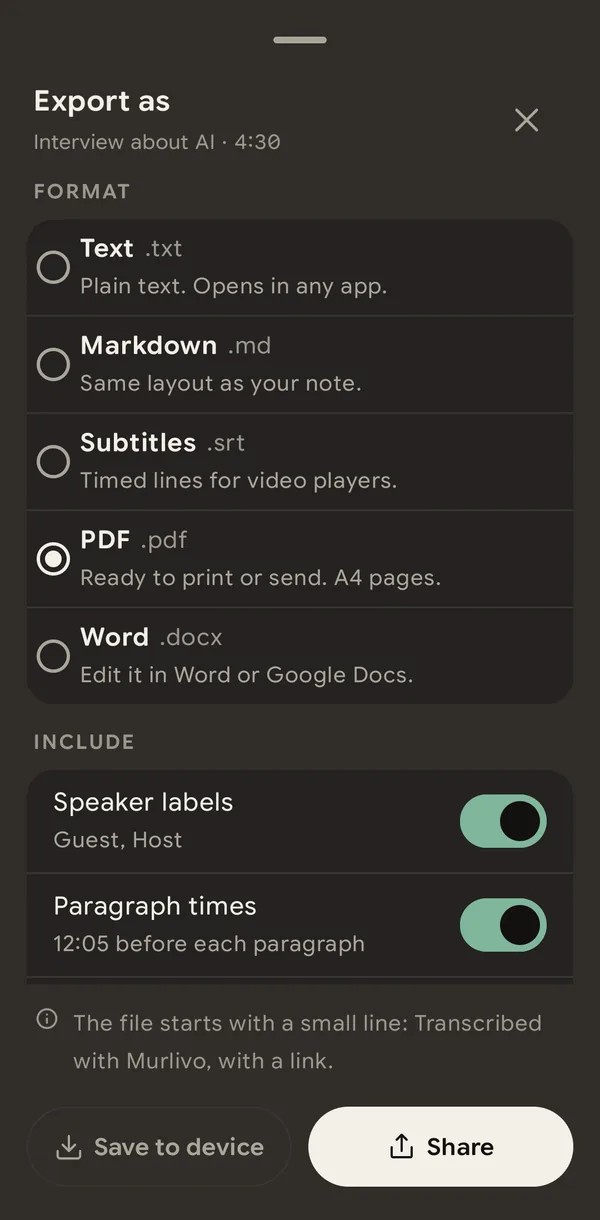
The five export formats
| Format | What you get | Good for |
|---|---|---|
| Text (TXT) | A plain .txt file | Any app that opens text |
| Markdown | A .md file with the same layout as your note | Notes apps such as Obsidian |
| Subtitles (SRT) | An .srt file with timed lines | Video players and video editors |
| A .pdf file on A4 pages | Printing or sending | |
| Word | A .docx file | Editing in Word or Google Docs |
How to export a transcript, step by step
- Open the recording. Tap it in your inbox. Its transcript must be ready.
- Open the menu. Tap the three-dot menu at the top and choose “Export as…”.
- Pick a format. Text, Markdown, Subtitles, PDF or Word.
- Choose what to include. Switch on or off “Speaker labels”, “Paragraph times” (a time such as 12:05 before each paragraph) and “Header” (title, date and length).
- Save or share. Tap “Save to device” and pick a folder, such as Downloads, or tap Share to send the file to another app.
A long recording takes a moment to become a PDF or a Word file. Murlivo shows how far it is, and you can cancel.
Subtitles (SRT) from a recording
An SRT file is made of short blocks, each with a start time, an end time and its text. Murlivo takes the times from the transcription, so every line matches the speech. A block has up to 2 lines of up to 32 characters, a size video players show well. With “Speaker labels” on, the speaker's name appears at the start of each new speaker.
A recording transcribed by an older version of Murlivo may have no times. Then the Subtitles option says “Needs times. Re-transcribe this capture to add them.” After a new transcription, SRT works.
Export a translation, or both languages
If you translated the recording, the export sheet has one more choice, “Text”: “Original”, “Translation” or “Both”. With “Both”, each paragraph comes in the original language, then in the translation. See Translate a transcript on your phone.
Is the transcript uploaded?
No. Murlivo writes the file on your phone, with no internet. The file goes only where you send it: the folder you pick, or the app you share it with.
Limits to know
- Only the text: an export holds the transcript, not the audio. Your notes folder already keeps the audio next to the note.
- A small Murlivo line: Text, Markdown, PDF and Word files start with the line “Transcribed with Murlivo”, with a link. Subtitles carry no Murlivo line.
- One recording at a time: each export makes one file from one recording.
- No other subtitle formats: Murlivo exports SRT, not VTT or other subtitle formats.
- Android 11 or newer is needed to run Murlivo.
When another tool fits better
- You need VTT, JSON or a subtitle editor. A desktop subtitle tool can convert an SRT file and adjust each line by hand.
- You want one file for many recordings. Every Murlivo note is already a Markdown file in your notes folder, so you can join them on a computer.
- Your team edits transcripts together online. A cloud service with shared workspaces fits better, if you are fine with uploading the audio.
For how Murlivo makes the text in the first place, see Offline speech to text on Android.
Questions
Can I export a transcript to SRT subtitles on Android?
Yes. In Murlivo 1.4 or newer, open the recording, tap the three-dot menu, choose “Export as…” and pick Subtitles. Each line carries its own times from the transcription.
Can I save a transcript as a Word file or a PDF?
Yes. Pick Word to get a .docx file you can edit in Word or Google Docs, or PDF to get A4 pages ready to print or send.
Does export need an internet connection?
No. Murlivo makes the file on your phone. You need internet only if you share the file to an online app.
Can I keep speaker names and times in the export?
Yes. Switch on “Speaker labels” and “Paragraph times”. Subtitles always carry their own times, and they show a speaker's name at the start of each new speaker.
Where is the exported file saved?
Where you choose. “Save to device” opens a folder picker, for example Downloads. Share sends the file to another app, such as email or a chat.
Why can I not pick Subtitles for an old recording?
Subtitles need times, and a recording transcribed by an older version may have none. Re-transcribe the recording, then export again.
References
- Murlivo changelog, version 1.4.0, checked .
- Murlivo product facts, checked .
- Murlivo on Google Play, checked .