
 EN
Speaker names in your transcripts on Android (2026)
Quick answer
In Murlivo, a recording of 3 minutes or more with two or more voices shows who is speaking: Speaker 1, Speaker 2. Tap a label and rename it, and the name changes in every line of that recording and in its note. With “Remember voices” (off by default), Murlivo suggests the names of people you record often. Their voiceprints stay only on your phone, encrypted. Ask the person first.
Checked by the Murlivo team.
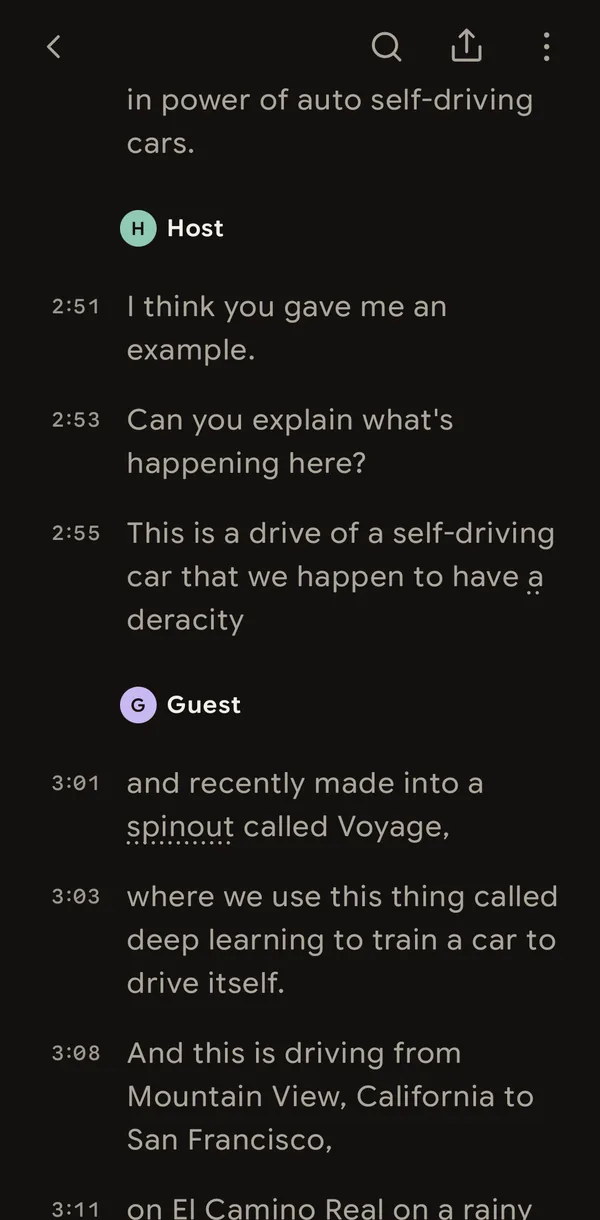
A transcript of a meeting, an interview or a family talk is hard to read when you do not know who said what. Many apps mark the voices as Speaker 1 and Speaker 2 and stop there, or send the audio to a server to do it. Murlivo finds the speakers on your Android phone, lets you give each one a name, and can learn the voices you choose so that you name them only once.12
How Murlivo marks who is speaking
Turn on “Identify speakers” in Settings, under Speakers. Then, in a recording of 3 minutes or more with two or more voices, Murlivo marks each part of the transcript with its speaker: Speaker 1, Speaker 2 and so on. The labels appear in the app and in the Markdown note in your notes folder. This works for recordings from the phone, from a Wear OS watch and for imported files.
The speaker step runs on the phone after the transcript is ready. It needs a one-time download of about 19 MB, and after that no internet. Shorter recordings get no labels.2
Name a speaker
- Open the recording and tap a speaker label, such as Speaker 1.
- Tap “Rename speaker” and type the name.
- Save. The name changes in every line of that speaker in this recording and in its note, not only in one paragraph.
From the same sheet you can merge two speakers into one, for example when Murlivo split one person into two. You can also move a single line to another speaker, or remove all labels: the transcript stays as it is. If the count is wrong, “Find speakers again” in the recording's menu lets you choose how many people speak.
Remember voices: names suggested for people you record often
If you record the same people again and again, you can let Murlivo remember their voices. “Remember voices” is a setting in Settings, under Speakers, and it is off by default. The first time you turn it on, one screen explains what is saved, where it stays and how to delete it, and you agree before anything is saved.
- Name a speaker as above. In the rename window, tick “Remember this voice”. The box is not ticked for you.
- Record as usual. When Murlivo hears that voice in a later recording, it asks “Is this Ana?”.
- Answer Yes or No. Yes puts the name in that recording and its note. No keeps Speaker 1, and that voice is not added to Ana's saved voice.
A saved voice is updated only when you confirm a suggested name, so a wrong guess does not change it. After you have confirmed a voice a few times, Murlivo may fill in the name by itself when it is very sure. It tells you so, and you can undo it. Naming speakers by hand works the same with Remember voices off.
What is saved, where it stays, how to delete it
- What is saved: a voiceprint for each person you choose, with the name you gave. A voiceprint is a short set of numbers that describes how a voice sounds. It is not a recording, and the voice cannot be played back from it.
- Whose voice: only people you named and chose with “Remember this voice”. Murlivo never saves the voice of a person you have not named.
- Where it stays: only on your phone, encrypted. It is never sent to us or to anyone else, never written to your notes folder and never part of usage data.
- How to delete: in Settings, under People, delete the saved voice of one person, or all of them with “Delete all saved voices”. Turning “Remember voices” off deletes all saved voices. Uninstalling the app deletes them too. Names already in your recordings and notes stay.
The full rules are in the privacy policy, under “Saved voices”.3
Ask the person first
The voice you save is often someone else's: a colleague, a client, a friend. A voiceprint can identify a person, so in many countries it counts as sensitive data. Ask the person first, before you tick “Remember this voice”, and remember the voice only if they agree. If they say no, you can still type their name by hand in each recording. If they change their mind later, delete their saved voice in People.
Limits to know
- 3 minutes or more: shorter recordings get no speaker labels, and so no names.
- Enough speech: to remember a voice, that speaker needs enough lines of their own in the recording.
- One table microphone, many people: when the phone is far from the speakers, Murlivo can put two people under one label. Merge, rename or move lines to fix it, and remember a voice only when its lines are right.
- Suggestions, not certainty: at first Murlivo asks before it uses a name. Later, a very sure match can be filled in by itself, with Undo. Check the names before you share a note.
- Phone only: the watch keeps no voiceprints. Saved voices are not synced between devices.
Questions
Can Murlivo show who is speaking in a transcript?
Yes. With “Identify speakers” on, a recording of 3 minutes or more with two or more voices is marked Speaker 1, Speaker 2 and so on, in the app and in the note. This runs on the phone.
How do I give a speaker a real name?
Open the recording, tap the speaker label and tap “Rename speaker”. The name changes in every line of that speaker in the recording and in its note.
Can Murlivo recognize people I record often?
Yes, if you turn on “Remember voices” in Settings. It is off by default. When you name a speaker and tick “Remember this voice”, Murlivo asks “Is this Ana?” when it hears that voice in a later recording.
Where are saved voices stored? Are they uploaded?
Only on your phone, encrypted. A saved voice is a voiceprint, not a recording. It is never sent to us or to anyone else and never written to your notes folder.
Do I need permission to remember someone's voice?
Ask the person first, and remember their voice only if they agree. A voiceprint can identify a person, so it may be sensitive data where you live. Without their yes, type their name by hand instead.
How do I delete a saved voice?
In Settings, under People, delete one person's saved voice, or all of them with “Delete all saved voices”. Turning “Remember voices” off deletes all of them. Names already in your notes stay.
Does it work offline?
Yes. Speaker labels need a one-time download of about 19 MB. After that, finding speakers, naming them and matching saved voices all run on the phone with no internet.
References
- Murlivo changelog, version 1.4.0, checked .
- Murlivo product facts, checked .
- Murlivo privacy policy, “Saved voices”, checked .